

Quick answer: can you export GameChanger stats?
Last updated: August 22, 2026
Usually, yes, if your team role has export access. The common path is a CSV export that can be opened in Excel, Numbers, or Google Sheets. If your role does not have export access, the practical fallback is copying completed-game GameChanger play-by-play and importing that into GC Stats instead.
The question is often not whether a file exists. It is whether your account role can reach it.
Need a season CSV
Use the GameChanger export when your team role can see Export Stats. Save the team, season, and filter context with the file.
No export option
Copy completed-game GameChanger play-by-play and paste it into the free GC Stats converter.
Need a coaching workflow
Create a free GC Stats account to keep imports searchable, review corrections, and build coach insights from the saved season record.
A real stat-line format GC Stats tests
The importer and exporter are covered against compact stat rows like this sanitized example:
Avery W. | PA 4 | AB 3 | R 2 | H 2 | 2B 1 | HR 0 | BB 1 | RBI 2 | INN 6 | #P 62
GC Stats keeps those values attached to the player, team, season, and game context you select. That is the practical difference between a file sitting in a downloads folder and a record you can find again before the next tournament.
How to export GameChanger stats in the app
- Open GameChanger and select your team.
- Open the Stats tab.
- Scroll to the bottom and select Export Stats.
- Choose any available game filters, then download the CSV.
Export availability depends on your team role. If the option is missing, jump to the play-by-play workaround below.
How to export GameChanger stats on the web
- Sign in to the GameChanger website and select your team.
- Open the team's Stats section.
- Use Filter Stats if you only need certain games.
- Select Export Stats to download the CSV.
No Export Stats option? Use the free converter
Export access is commonly limited by account role. You do not need to bypass permissions: copy the play-by-play from a completed game you can already view, paste it into the GC Stats converter, and download the results as CSV, Excel, JSON, or TXT.
Convert GameChanger play-by-play for free. No account is required, and the pasted play-by-play is not saved.
This fallback keeps the workflow simple: use the completed-game record you can access, preserve the game context, and produce a portable stat file without waiting for a public API.
Step 2: keep the context with the file
The export is much more useful when you keep notes about which team, season, and game filters were used. That makes it easier to compare versions later and avoid confusion once multiple exports exist.
Step 3: move the export into a usable workflow
This is where most teams get stuck. A raw CSV can be fine for one quick look, but it gets messy fast when you need searchable stats, review notes, roster context, or multiple imports over time.
GC Stats is meant to be the next step after the export, not a replacement for getting the file in the first place.
Who this is for
Parents who need access
When one coach or team account controls the stats, this workflow gives families a practical way to keep usable season data too.
Coaches and team admins
If you already have the export, GC Stats helps turn it into something searchable and easier to manage than a growing pile of spreadsheets.
Anyone rebuilding from exports
This is for people who want more control over the season record without waiting on a public API or a new official workflow.
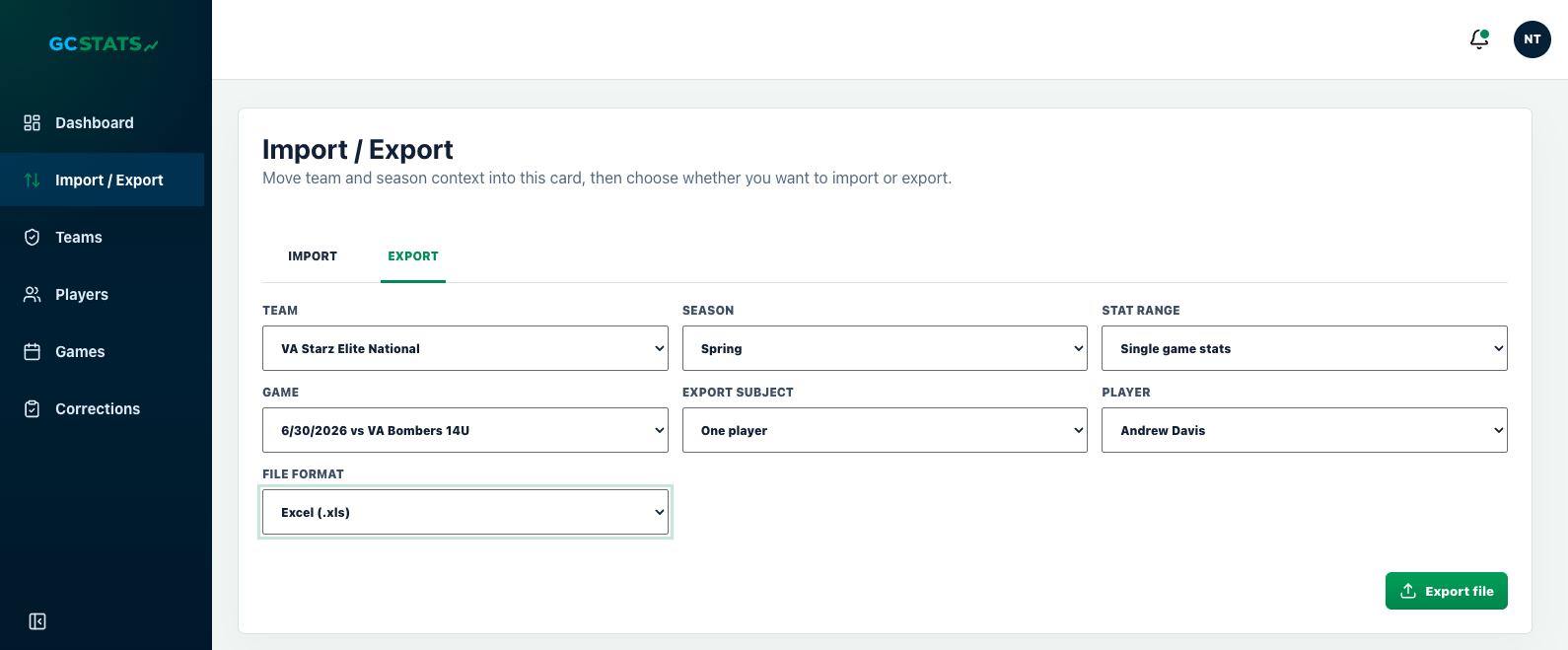
What the export workflow looks like inside GC Stats
1. Start with the file you can access
Pull the GameChanger export or saved GameChanger play-by-play you already have instead of waiting on a direct API that is not available.
2. Keep the season context attached
Inside GC Stats, imports and exports stay connected to the team, season, game, and player choices that made the file meaningful.
3. Move from export file to searchable season dashboard
Once the data is organized, you can review flagged rows, search stat lines, and keep a season record that is easier to carry forward.
What to do after the export
- Keep one home for the season instead of scattered spreadsheets
- Review rows that need a quick second look
- Search by player, team, game, or stat type
- Carry the data forward instead of re-cleaning every new export
How teams usually use GC Stats after exporting
Save the import with season context
Keep the team, season, and game history tied to the file instead of burying each export in a downloads folder.
Search the season faster
Use a searchable dashboard and tables when you need to compare players, games, and stat lines quickly.
Export again without starting over
New files can build on the same workflow instead of forcing a fresh spreadsheet cleanup every time.
CSV, box score, or play-by-play: which export should you use
"Export GameChanger stats" usually means one of three different things, and picking the right one saves a lot of cleanup later.
CSV stat file
A flat spreadsheet of season or game totals: AB, R, H, RBI, BB, SO, AVG, OBP, SLG for hitting, and IP, ER, BB, K, ERA for pitching. Best when your role has export access and you want raw numbers to work from.
Shareable box score
A formatted summary of one game, usually meant for sharing rather than analysis. Useful for a quick recap, not for building a season record.
GameChanger play-by-play
The full sequence of events from a completed game, copied as text. This is the fallback when CSV export is not available to your account role, and it is what GC Stats uses to rebuild a game if you cannot export a file directly.
Common problems when exporting GameChanger stats
A game or player is missing
Check the season, date range, and team filters before assuming data was lost. Most "missing" games are a filter or permission scope issue, not a deleted record.
The export only covers one season
Exports are usually scoped to a single season by design. If you coach or follow a team across multiple seasons, plan to import each export separately and let GC Stats keep the season-over-season view.
The file looks wrong in Excel or Numbers
CSV files sometimes need a manual "import as text" step depending on the spreadsheet app, especially with player names that include punctuation. If a raw CSV is giving you trouble, GameChanger play-by-play text is usually easier to work with instead.
Your account role cannot export at all
Export access is often limited to whoever manages the team account. If that is not you, copying the GameChanger play-by-play from a completed game is the practical workaround.
What to do when you cannot export the CSV
Your role is missing the export option
That is usually a permissions problem, not a broken season. If you cannot change roles, use completed-game GameChanger play-by-play instead.
You only need one game
Copying one completed game's play-by-play is often faster than chasing down a full export, especially when a coach just needs one game imported right now.
You want the exact copy steps
Use the GameChanger play-by-play import guide for the screenshot-backed copy-and-paste workflow.
FAQ
What format does a GameChanger stats export come in?
Usually a CSV stat file, a shareable box score, or GameChanger play-by-play text, depending on your role and what you are trying to export.
Can you export GameChanger stats to Excel?
Yes, a CSV export opens in Excel, Numbers, or Google Sheets. It is a one-time flat file though, not a searchable season record, which is where GC Stats picks up.
Why is a game missing from my export?
Almost always a filter, date range, or permission scope issue. Double-check those before assuming the data does not exist.
Do I need a CSV export to use GC Stats?
No. GC Stats also accepts GameChanger play-by-play copied from a completed game, which works even when CSV export is not available to your account role.